

Create an account
Sign up for a Runpod account at console.runpod.io/signup. Once created, you can use your account to deploy Pods, create Serverless endpoints, and access other Runpod services. Personal accounts can be converted to team accounts at any time to enable collaboration features.Convert to a team account
Team accounts enable multiple users to collaborate on projects and share resources. To convert your personal account into a team account:- Navigate to the Team page in the Runpod console.
- Select Convert to a Team Account.
- Enter a team name and confirm the conversion.
You can revert your account back to a personal account at any time. To revert, scroll to the bottom of the Team page and select Delete Team.
Invite team members
Team accounts can invite new members to collaborate, and each invitation includes a specific role that determines the member’s permissions.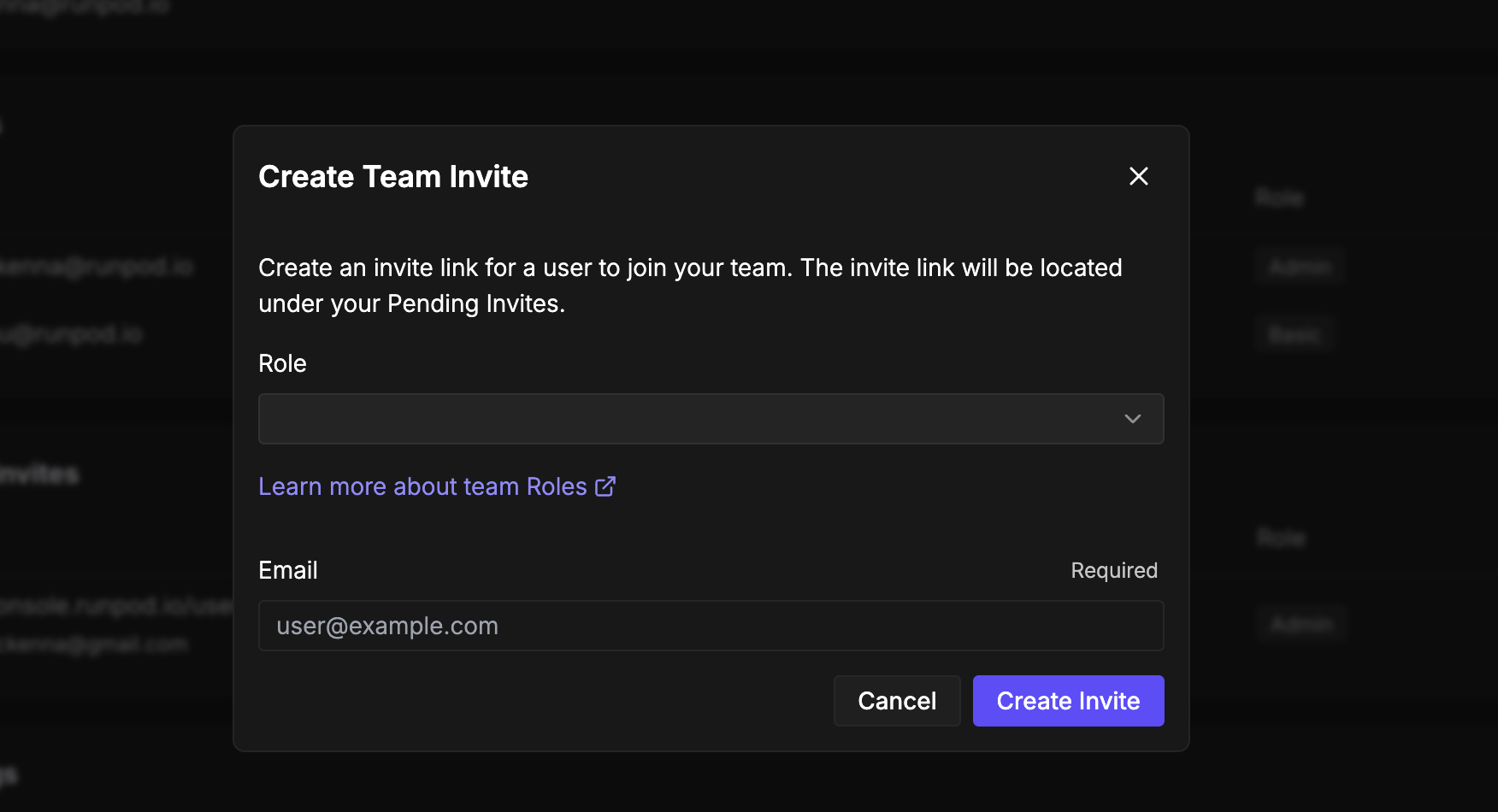 For step-by-step instructions on inviting a member and choosing their role, see Assign a role to a team member.
Join a team
When invited to join a team, you’ll receive an invitation link from a team member. To accept:- Click the invitation link provided by the team member.
- Select Join Team to accept the invitation.
Roles and permissions
Runpod team accounts provide four built-in roles (Basic, Billing, Dev, and Admin) that control access to Pods, Serverless endpoints, network volumes, and billing. Each role grants a different set of permissions. For the full permissions matrix and guidance on assigning and revoking roles, see Roles and permissions.Account spend limits
By default, Runpod accounts have a spend limit of $80 per hour across all resources. This limit protects your account from unexpected charges. If your workload requires higher spending capacity, you can contact support to increase it.Monitor account activity
Runpod provides comprehensive audit logs to track all actions performed within your account. This feature helps maintain security and accountability across team operations. Access audit logs at console.runpod.io/user/audit-logs. The audit system records detailed information about each action, including the user who performed it, the affected resource, and the timestamp. You can filter logs by date range, user, resource type, resource ID, and specific actions to investigate account activity or troubleshoot issues. Regular review of audit logs helps identify unusual activity and ensures team members use resources appropriately.Best practices
When managing team accounts, regularly review team membership and remove access for members who no longer need it. Monitor audit logs periodically to ensure compliance with your organization’s policies and identify any unauthorized activities early.Next steps
After setting up your account and team you can:- Create API keys to enable programmatic access to Runpod services.
- Deploy your first Pod to start using GPU resources.
- Configure Serverless endpoints for scalable AI inference.
- Set up billing and payment methods for your team.